Bicep HeartSign in ↗
From one photo to a complete gesture.
Begin with an input that shows the arms
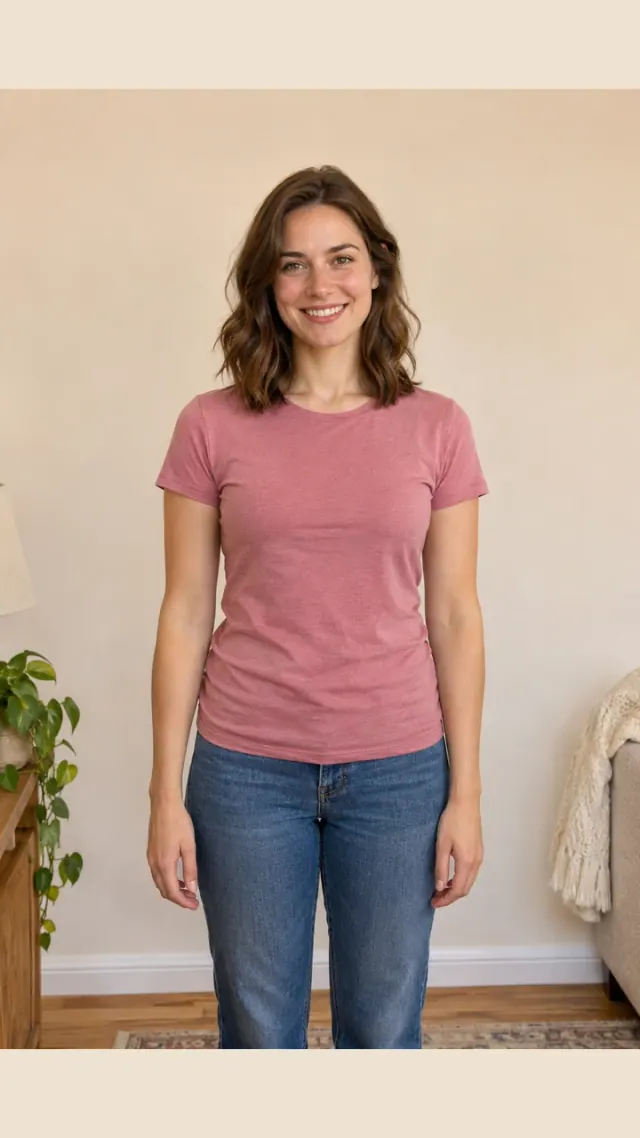
Choose one adult facing the camera, photographed from head to waist. Keep both shoulders, upper arms and hands visible, with space beside the elbows. Use JPG, PNG or WebP up to 5 MB. Compare your framing with the example before paying for a new generation. Short sleeves make the arm easier to see; we have not established that bare arms guarantee a better video.
Choose the movement you want to make
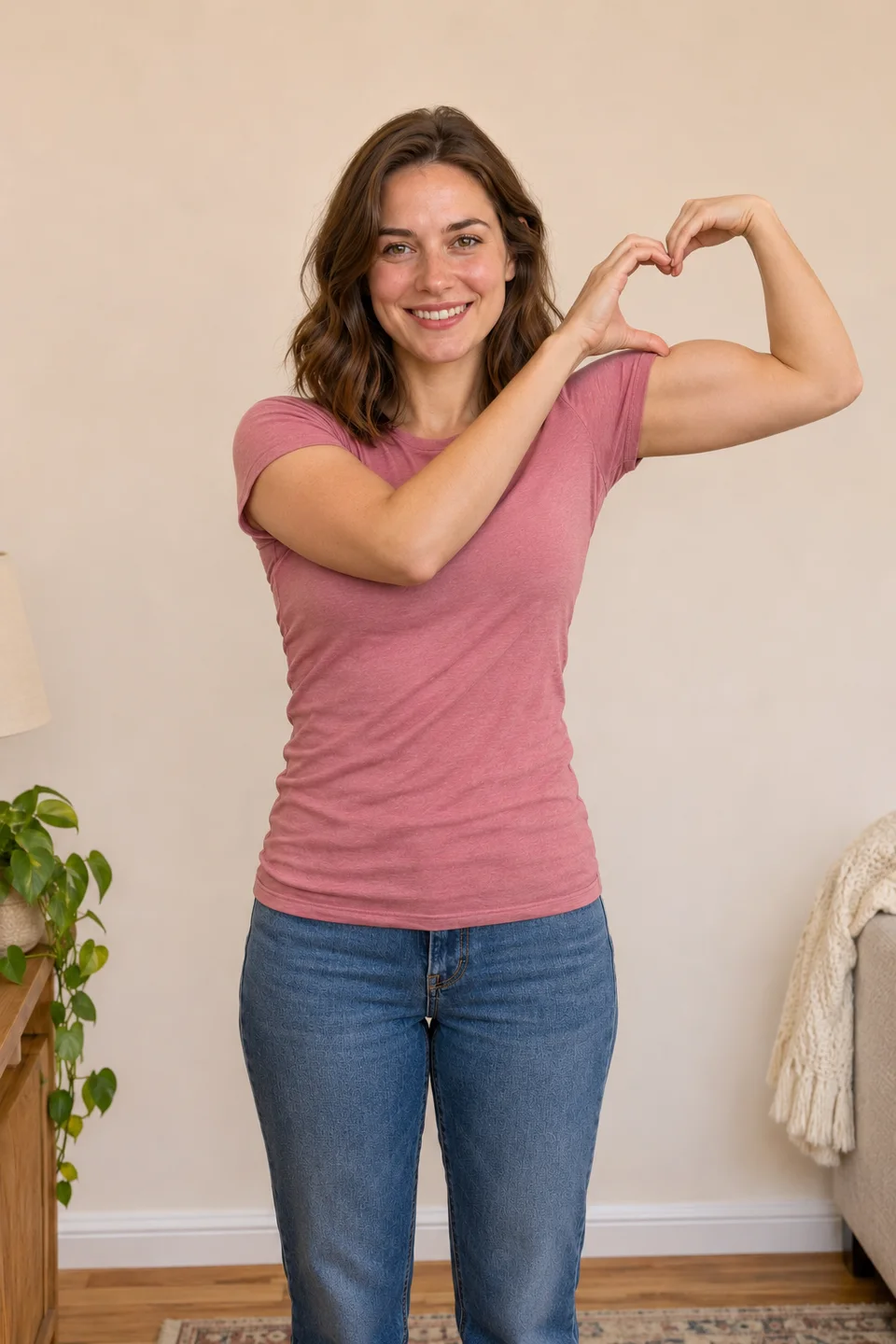
Choose the movement you want before you start. The outdoor scene has a relaxed head tilt; standing lifts the arm directly, while seated adds a sleeve reveal. Play each example beside its original photo, then select a scene. Watch the opening, fingertip contact and ending to find the version you would like to send.
Motion reference and first/last frames
Our bicep heart videos use a movement reference with your original photo. The photo supplies the person’s appearance; the scene supplies the arm movement and framing. A separate still preview shows a possible finished pose. It is useful for checking the little heart, but it is not the final frame of your video and does not guarantee an identical result.
Keep identity separate from the reference
Your photo supplies the adult’s face, hair, clothing and body proportions. The scene guides the gesture. Once the video is ready, look for a recognisable face, coherent sleeves and natural hands throughout the movement. Check for unfamiliar marks or accessories before sharing. AI can alter fine details, and the example does not guarantee the same quality for every upload.
Review the complete output
Play from the relaxed start through the held heart. The free hand should meet the curled wrist and close a readable gap above the bicep. Check both elbows, fingers, eyes and smile. Look for cuts, stretched sleeves, a sudden frozen ending or a shape that appears only in the poster. Download and share the take only when you are happy with the complete movement.
Wait, refresh and recover without repeating payment
A generation may still be processing while a page appears unchanged. Use the saved result entry to check its state. Refreshing should reopen that task, not submit another one. If a submission outcome is uncertain, wait for its status to be checked. Technical failures, incomplete delivery and visual defects need different support handling; do not repeatedly buy credits to diagnose the same problem.
Save the complete original MP4
Open your completed private result and play it through the final frame. Download the original 7-second, vertical 720p MP4 using the download button. The file is silent so you can add a permitted sound in your social app. Keep this original copy before cropping, captioning or making another version for a different platform.
Add sound after saving
Choose a permitted sound in the platform where you will post. A music label visible on an original creator’s post does not grant rights to distribute that recording inside a generated file. Set the crop so the hands remain visible, then place captions outside the heart. Use the platform’s AI label where required for generated media.
Your scene includes instructions
Our scene choices include the movement instructions for you. Pick the example you like, upload your adult photo and keep the arms visible. You do not need to write a prompt or choose a model. Once the video is ready, check the fingers and face through the whole movement. If unfamiliar marks, extra accessories or a broken heart appear, keep the result ID and contact support about the defect.